



Every iPhone user has faced that moment of sheer panic when they accidentally delete something important. It’s like losing a sock in the dryer—frustrating and utterly confusing. But fear not! The iPhone has a hidden treasure trove called the “Trash,” where deleted items go to hang out before they’re permanently sent packing.
Understanding the Trash Feature on iPhone
The Trash feature on iPhone allows users to temporarily store deleted items, providing a safety net for recovering important data before permanent deletion. This feature plays a crucial role in managing lost files.
What Is the Trash Folder?
The Trash folder serves as a holding area for recently deleted files and applications. Items placed here remain accessible for a limited time, usually 30 days, before they are automatically removed. Users can retrieve deleted photos, emails, notes, and other files during this grace period. Accessing the Trash folder allows for easy recovery of essential content.
Why It’s Important to Access Trash
Accessing Trash plays a vital role in data management and recovery on iPhones. It prevents stress and loss by enabling users to restore mistaken deletions swiftly. While it seems convenient, knowing how to utilize this feature effectively saves time and effort. Recovering items from Trash avoids the need to recreate lost documents or memories, enhancing the overall user experience.
Accessing the Trash on iPhone
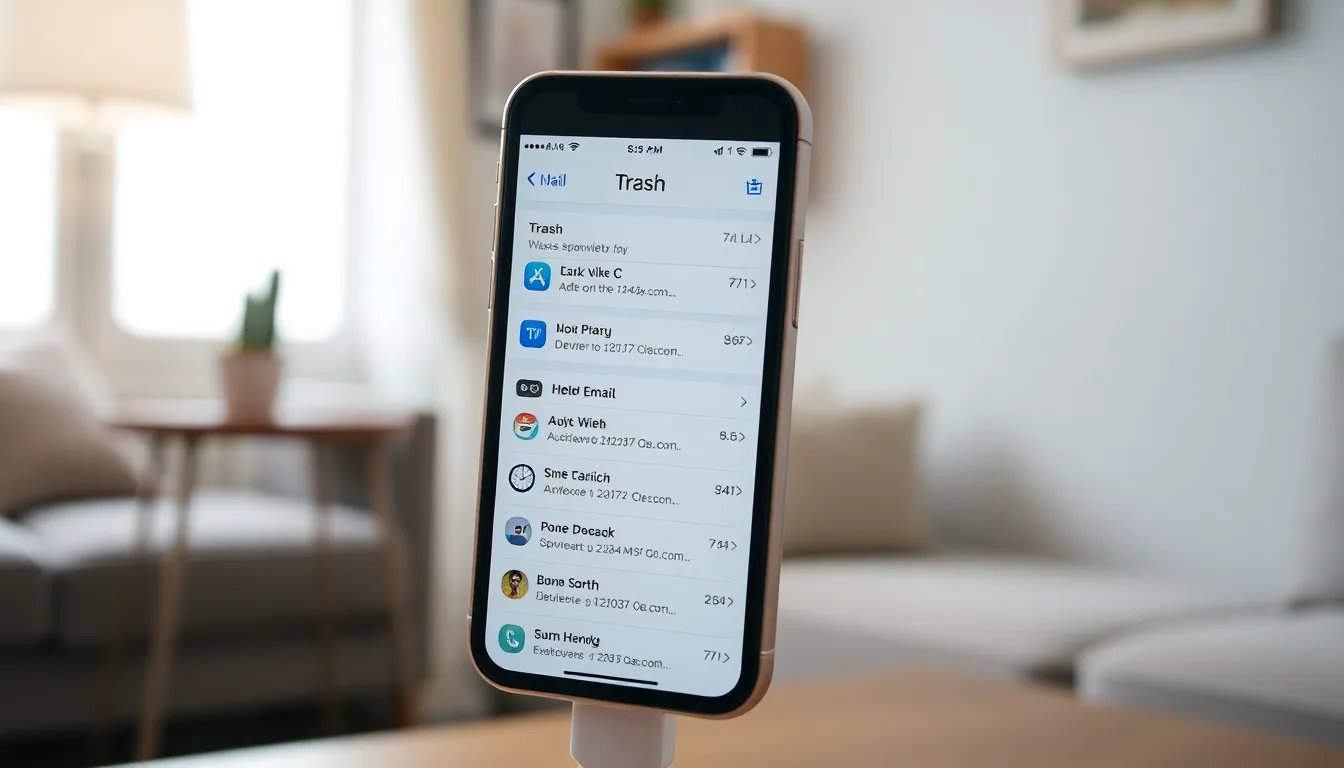
Accessing the Trash on an iPhone allows users to recover recently deleted items quickly. The process depends on the specific app used for deletion.
Steps to Open Trash in Mail App
- Open the Mail app on the iPhone.
- Tap on the “Mailboxes” option located in the upper-left corner.
- Scroll down to find the “Trash” folder and select it.
- Swipe left on any email to reveal the “Move” option for recovery or tap “Edit” to choose multiple emails.
- Select “Move” and then pick the target mailbox to restore those emails.
Following these steps ensures that emails found in Trash can easily get restored.
Steps to Open Recently Deleted in Photos App
- Launch the Photos app on the iPhone.
- Tap on “Albums” at the bottom of the screen.
- Scroll down to find the “Recently Deleted” album and select it.
- Browse through the deleted photos; select any images to recover.
- Tap “Recover” to restore the chosen photos back to the main library.
These steps help users find and recover deleted images, minimizing loss of important media.
Restoring Deleted Items
Restoring deleted items on an iPhone is straightforward, allowing users to retrieve valuable data quickly. Below are specific instructions for recovering deleted emails and photos.
How to Recover Deleted Emails
To recover deleted emails, users open the Mail app and locate the “Mailboxes” section. Next, they select the “Trash” folder to view recently deleted emails. Users can then swipe left on individual emails to reveal options, including “Move Message.” Tapping this option enables them to restore emails to their original inbox. Emails remain in the Trash folder for 30 days before permanent deletion, giving users ample time to recover important messages.
How to Recover Deleted Photos
Restoring deleted photos is accessible through the Photos app. Users first open the app and navigate to “Albums.” In this section, they find the “Recently Deleted” album, which contains images removed within the last 30 days. Users can tap on the album to view deleted photos, select specific images, and then choose the “Recover” option. Photos return to the main library after restoration, ensuring that valuable memories are not lost permanently.
Managing Trash Settings
Managing the Trash settings on an iPhone ensures smooth data recovery processes. Users maintain control over how long deleted items remain accessible and how to modify them.
Modification and Deletion Settings
Modification settings allow users to customize how they handle deleted items. Accessing these settings requires navigating to each app’s preferences. Users can make adjustments for email apps to specify how long deleted emails stay in the Trash. By default, emails typically remain in Trash for 30 days. Adjusting this timeframe can help users safeguard critical messages longer. For other applications such as Notes and Files, users can find similar options allowing them to alter retention periods. These modifications prevent accidental data loss, ensuring valuable content remains retrievable longer.
Automatically Emptying Trash
Automatically emptying the Trash streamlines data management. Users can activate this feature in various apps to ensure unwanted files don’t linger indefinitely. Setting the iPhone to erase Trash items after a specific timeframe can prevent storage overload. In the Photos app, users may decide to empty the Recently Deleted album after 30 days. App settings typically provide options for different timeframes, empowering users to choose how soon they want deleted items removed automatically. This feature enhances device performance and keeps storage organized efficiently.
Accessing the Trash feature on an iPhone is essential for anyone who wants to recover accidentally deleted items. By knowing how to navigate the Trash in various apps like Mail and Photos users can quickly restore important files and emails. This not only alleviates the stress of losing valuable data but also enhances overall device management.
Customizing Trash settings further empowers users to take control of their data recovery process. With the ability to adjust how long deleted items are retained users can ensure that critical information remains accessible when needed. Embracing these features ultimately leads to a more efficient and organized iPhone experience.