


Ever tried to check your email only to be greeted by the dreaded “cannot verify server identity” message? It’s like your iPhone just decided to throw a tantrum, refusing to connect to the very servers that hold your precious messages. Frustrating, isn’t it? This pesky notification can feel like a digital roadblock, leaving users scratching their heads and wondering if their phone is playing hard to get.
Understanding Server Identity Verification
Server identity verification plays a crucial role in email communication on iPhones. This process ensures that the server’s identity is authentic, thereby protecting user data and privacy.
What Is Server Identity Verification?
Server identity verification involves confirming that the server communicating with the device is legitimate. This validation typically relies on security certificates issued by trusted entities. Authentication prevents unauthorized access to sensitive information, reducing the risk of phishing attacks. Users encounter the “cannot verify server identity” message when their iPhones detect a mismatch during this verification process.
Importance of Server Identity Verification
Protecting personal data hinges on server identity verification. Unauthorized servers can compromise email security, leading to data breaches. Trustworthy communication relies on robust verification methods, which enhance overall user confidence. Additionally, successful verification ensures that users interact with the correct servers, avoiding confusion and potential security threats. Understanding this process highlights its significance in maintaining secure and reliable email access on iPhones.
Common Causes of “Cannot Verify Server Identity” Message
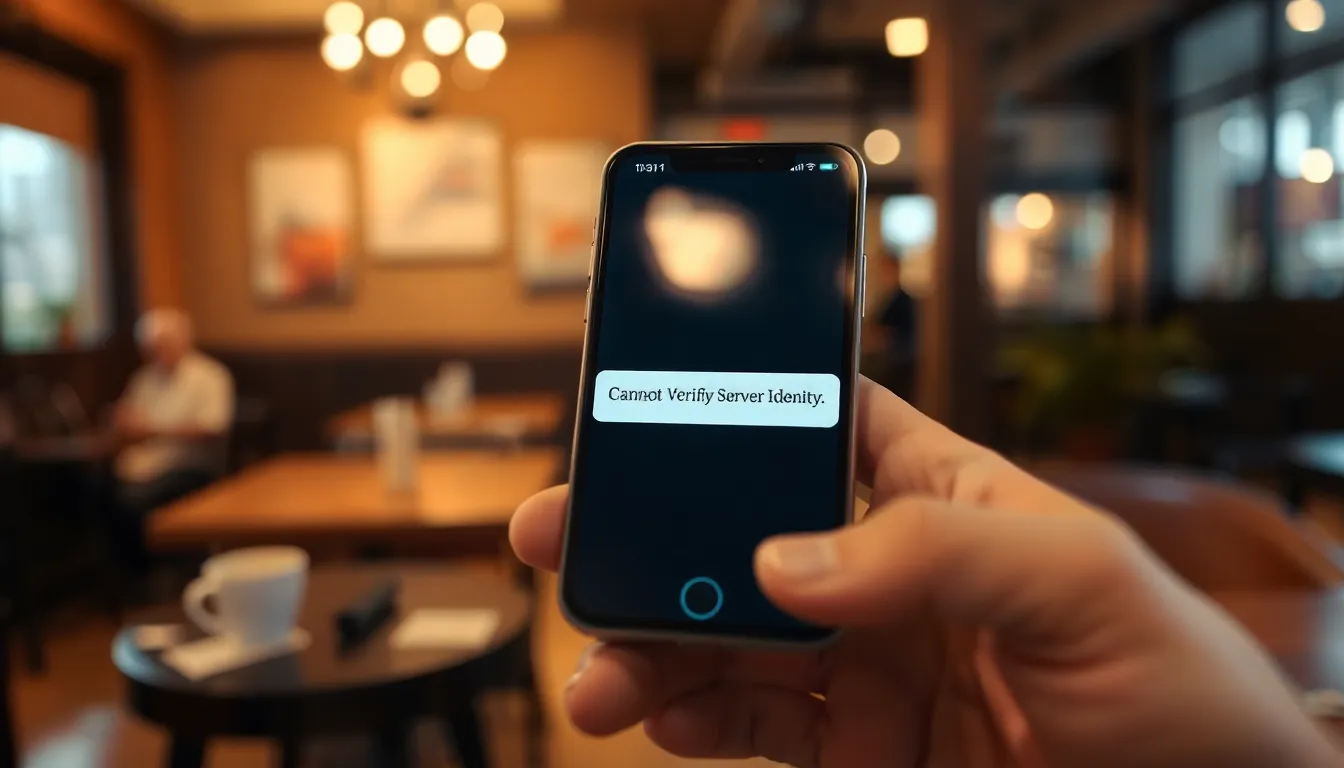
Several factors contribute to the “cannot verify server identity” message on iPhones. Understanding these common causes can help users troubleshoot the issue effectively.
Incorrect Date and Time Settings
Incorrect date and time settings can disrupt the server identity verification process. If the device displays the wrong date, it may reject the server’s security certificate. Users should ensure that their iPhone is set to automatically update the date and time based on their time zone. Checking these settings can eliminate one common cause of the verification error.
Network Connection Issues
Network connection issues frequently trigger the “cannot verify server identity” message. Poor Wi-Fi signals or unstable cellular connections can prevent the iPhone from accessing mail servers properly. Switching to a different network or restarting the device’s current connection may resolve connectivity problems. Ensuring a stable connection allows for smooth communication with email servers.
Outdated iOS or Mail Settings
Outdated iOS or mail settings lead to several email-related issues, including server identity verification errors. Running the latest iOS version ensures compatibility with server protocols. Users should regularly check for updates in the settings menu to maintain optimal performance. Additionally, updating mail settings keeps the application in sync with current security standards.
Troubleshooting Steps to Resolve the Issue
Addressing the “cannot verify server identity” message requires several troubleshooting steps. Each of these actions targets common causes that lead to this error.
Check Date and Time Settings
Ensure that date and time settings display correctly. Incorrect settings disrupt server identity verification, leading to errors. Go to Settings, tap on General, and select Date & Time. Enable the “Set Automatically” option for optimal accuracy. When the device manages these settings automatically, it aligns with server protocols, significantly reducing errors.
Verify Network Connection
Confirm whether the network connection is stable. Unstable Wi-Fi signals or weak cellular connections often result in verification issues. Check Wi-Fi settings or switch to another network for testing. Restarting the router may improve connectivity. For cellular connections, ensure that data services function correctly. A solid connection helps maintain communication between the iPhone and the email server.
Update iOS and Mail Settings
Updating iOS and mail settings plays a vital role in resolving verification issues. Navigate to Settings, select General, then tap on Software Update. Install any available updates to ensure compatibility with email protocols. Additionally, verify the account settings within the Mail app. Outdated configurations can lead to errors, which updates can easily fix. Keeping software current enhances the overall functionality of the device and improves user experience.
Preventive Measures for Future Issues
Implementing preventive measures can minimize the chances of encountering the “cannot verify server identity” message in the future.
Regularly Update iOS
Keeping iOS updated plays a key role in maintaining device functionality. Regular updates not only introduce new features but also fix bugs related to server identity verification. Users should navigate to Settings, then General, and select Software Update to check for any available updates. Installing these updates can resolve compatibility issues with email servers. Following this practice ensures smoother email communication and enhances overall device performance.
Check Email Configuration
Verifying email settings can prevent verification issues from recurring. Users should access the Mail app and navigate to account settings to confirm configurations are accurate. This includes double-checking the incoming and outgoing server settings for correct server names and ports. Ensuring these details match the email provider’s specifications reduces the likelihood of server mismatch errors. Regularly reviewing these settings keeps the email setup aligned with current security protocols.
Encountering the “cannot verify server identity” message can be a frustrating experience for iPhone users. Understanding the importance of server identity verification is key to recognizing why this issue arises. By following the troubleshooting steps outlined in the article and implementing preventive measures, users can minimize the chances of facing this error in the future. Keeping iOS updated and verifying email settings are simple yet effective ways to ensure a smoother email experience. With the right approach, users can regain confidence in their device’s ability to securely access their important messages.