


In the vast ocean of the internet, finding your way can sometimes feel like navigating a ship without a compass. Luckily for Mac users, bookmarking is the lifesaver that keeps favorite websites just a click away. Whether it’s your go-to recipe site or that blog you can’t stop binge-reading, knowing how to bookmark on a Mac is essential for smoother sailing.
Understanding Bookmarks on Mac
Bookmarks serve as a vital tool for Mac users navigating the internet. They allow for quick access to frequently visited websites, enhancing browsing efficiency. Websites like news outlets, educational resources, and personal blogs can be bookmarked to simplify navigation.
Mac’s Safari browser provides an intuitive bookmarking feature. Users can bookmark a page by selecting the share icon in the address bar and choosing “Add Bookmark.” This action opens a window for naming the bookmark and selecting its storage location. Organizing bookmarks into folders helps in maintaining a clutter-free bookmark list.
The Favorites Bar in Safari displays bookmarks for immediate access. By customizing this bar, users can add their preferred websites and remove those that are less frequently visited. For easy management, dragging bookmarks into new folders or rearranging them is straightforward.
Safari’s bookmarks can sync across devices using iCloud. Users must enable iCloud for Safari in their system preferences to access bookmarks on their iPhone or iPad. This feature ensures users have their favorite sites accessible, no matter which device they use.
In addition, Safari allows users to edit or delete bookmarks effortlessly. Right-clicking a bookmark in the bookmarks menu brings up options for editing the name or URL. Deleting unwanted bookmarks keeps the list relevant and streamlined.
Utilizing these features transforms how Mac users interact with the web, solidifying bookmarks as an essential aspect of the browsing experience. With organized and easily accessible bookmarks, users can navigate the vast online landscape with confidence and speed.
How to Access the Bookmark Menu
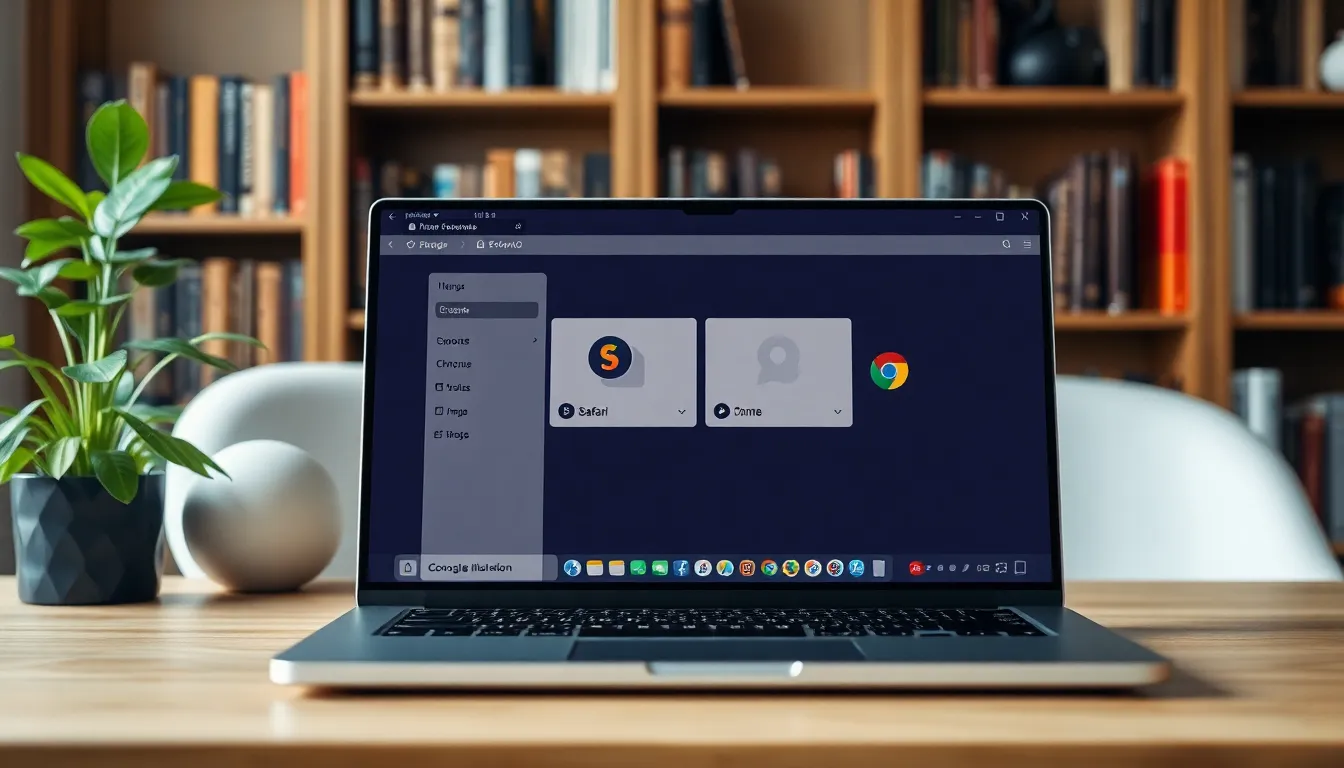
Accessing the bookmark menu allows users to manage favorite websites efficiently. Users can easily use this feature in both Safari and Google Chrome.
Using the Safari Browser
To access bookmarks in Safari, click on the sidebar button, which looks like an open book. The bookmarks menu then appears, displaying all saved bookmarks and folders. Users can select any bookmark to navigate directly to the associated webpage. Organizing bookmarks into folders enhances accessibility and keeps everything tidy. Drag and drop bookmarks to rearrange or sort them as desired.
Using Google Chrome
In Google Chrome, bookmarks are accessed by clicking the three dots in the top right corner. From the drop-down menu, select “Bookmarks” to reveal a list of saved sites. Bookmark management includes options to create folders, move bookmarks, or delete them. Access bookmarks quickly through the bookmarks bar, which users can customize for efficiency. By bookmarking frequently visited sites, users streamline their online experience.
Creating Bookmarks
Bookmarking enhances web browsing efficiency by keeping favorite sites readily accessible. Users can easily save and organize important web pages for quick reference.
Bookmarking a Web Page
To bookmark a web page in Safari, click the share icon located in the toolbar. This action opens a menu where users select “Add Bookmark.” Afterward, users can choose the folder for organization. In Google Chrome, clicking the star icon in the address bar provides options to save the page as a bookmark as well. It’s crucial to name the bookmark something memorable for easier retrieval later. With just a few clicks, users streamline access to recipe pages or news articles they frequently visit.
Organizing Bookmarks into Folders
Creating folders for bookmarks in Safari simplifies organization. Users can click “Bookmarks” in the menu, then select “Add Bookmark Folder.” After naming the new folder, they can drag existing bookmarks into it, keeping related sites grouped. In Google Chrome, accessing the bookmarks manager allows users to create folders easily as well. By sorting bookmarks according to categories like hobbies or research, users enhance their browsing experience significantly. Implementing folders reduces clutter and ensures rapid access to essential resources.
Managing Bookmarks
Efficient management of bookmarks enhances the browsing experience for Mac users. Users benefit from the ability to organize, edit, and delete bookmarks with ease.
Editing a Bookmark
Editing a bookmark in Safari is straightforward. Users can navigate to the bookmark manager by clicking the sidebar button. From there, selections reveal organized bookmarks. To edit, simply right-click on a bookmark and choose “Edit Address” or “Edit Name” in the dropdown menu. Changing the name aids in better identification when searching through bookmarks. Adjusting the URL ensures that the link remains accurate and functional. For added organization, consider moving bookmarks into different folders. This approach maintains a tidy bookmarks list.
Deleting a Bookmark
Deleting a bookmark also takes only a few steps in Safari. Access the bookmark manager through the sidebar button first. Users then locate the bookmark they wish to remove. After selecting the bookmark, a right-click brings up the option to delete. Confirming the deletion removes the bookmark permanently. For users who prefer, bookmarks can also be deleted directly from the Favorites Bar with a simple right-click. Maintaining a relevant bookmarks list encourages a clutter-free browsing experience and helps users stay focused on their favorite sites.
Syncing Bookmarks Across Devices
Syncing bookmarks across devices enhances accessibility for Mac users. Using iCloud, users can keep their bookmarks updated between their Mac, iPhone, and iPad seamlessly. Every time a bookmark is added or modified on one device, the changes reflect on all connected devices.
To enable this functionality, users need to ensure that iCloud is set up correctly. They can visit System Preferences, select Apple ID, and check iCloud settings to confirm that Safari synchronization is enabled. With this feature turned on, accessing favorite websites becomes convenient regardless of the device.
Every time a new bookmark is created, users experience the benefit of immediate updates on all devices. For instance, saving a recipe page on a Mac will make it instantly available on an iPhone, allowing for quick reference without the need to search again. This integration maximizes the effectiveness of bookmarking, transforming how users interact with the web across platforms.
Users should also keep in mind that any deletions or edits made to bookmarks will sync across devices. If a bookmark is removed from one device, it disappears from all devices, maintaining a consistent and relevant bookmarks list. This automatic syncing eliminates the hassle of managing separate bookmarks on each device.
Accessibility increases significantly when bookmarks are organized effectively. Users can create specific folders in Safari to categorize bookmarks, making navigation even simpler. Keeping folders synced ensures that users find their favorite sites organized neatly, regardless of the device they use.
Leveraging iCloud for bookmark syncing proves essential for a connected and efficient browsing experience.
Bookmarking on a Mac transforms how users engage with the web. By utilizing Safari’s intuitive features and Google Chrome’s efficient management tools, users can streamline their online experience. With the ability to organize bookmarks into folders and sync them across devices using iCloud, accessing favorite sites becomes seamless and efficient.
Maintaining an organized bookmarks list not only saves time but also enhances productivity. Whether it’s quick access to news articles or recipe pages, the benefits of effective bookmarking are clear. Embracing these practices allows Mac users to navigate the vast ocean of the internet with ease and confidence.